

Anyone who wants to manage tools efficiently needs one thing above all: transparency. But that is exactly what is lacking in many businesses. Which tools are available? Which tools are reaching critical limits? Where are bottlenecks looming in the warehouse? And which actions were carried out most recently?
With the new add-on twinio Dashboard for our tool management twinio you get answers to exactly these questions – centrally, clearly arranged, and in real time. All key figures are brought together in one place and support you in making well-founded decisions for your production.
Tool availability at a glance
A smooth-running production process begins with knowledge about the condition and availability of the tools being used. The dashboard visualises the availability of all tools and provides a quick overview of their current status.
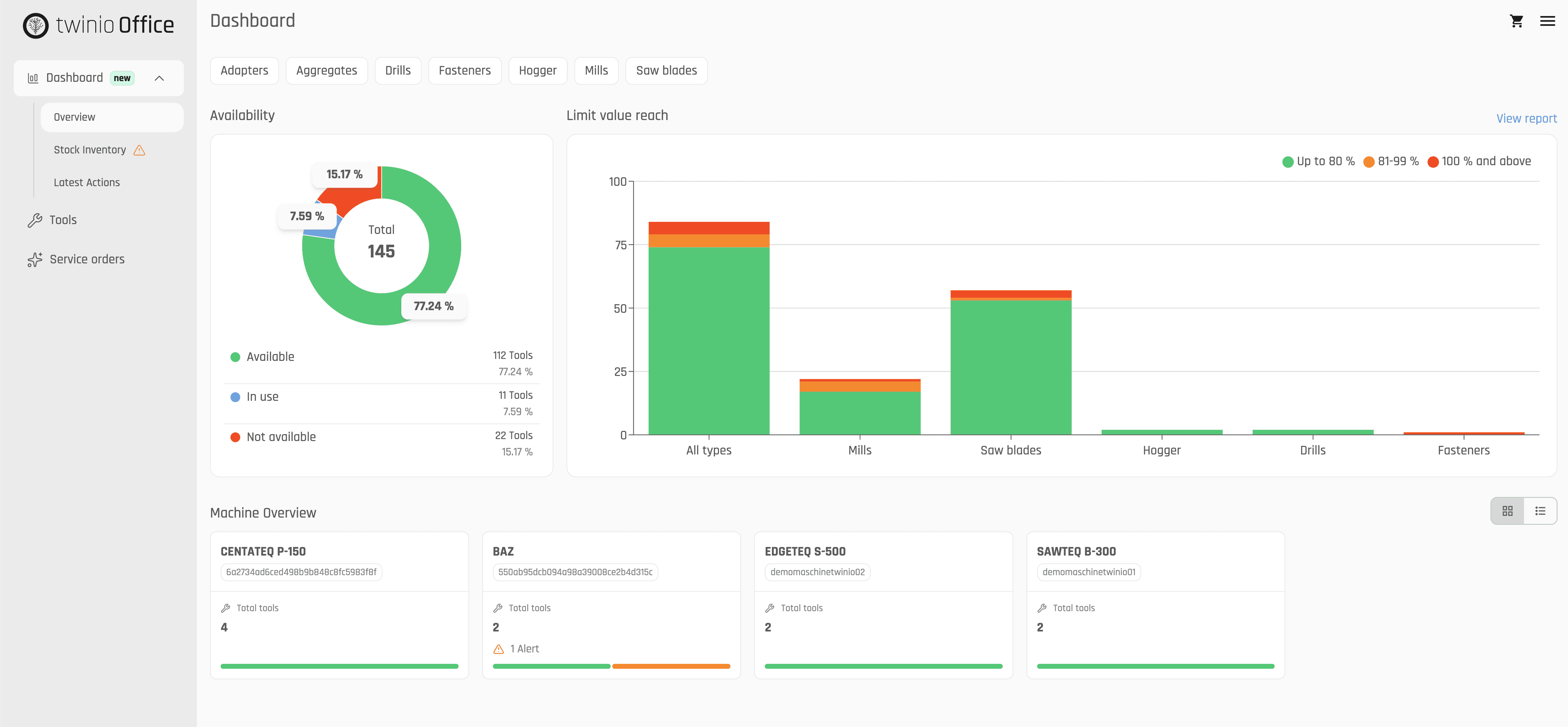
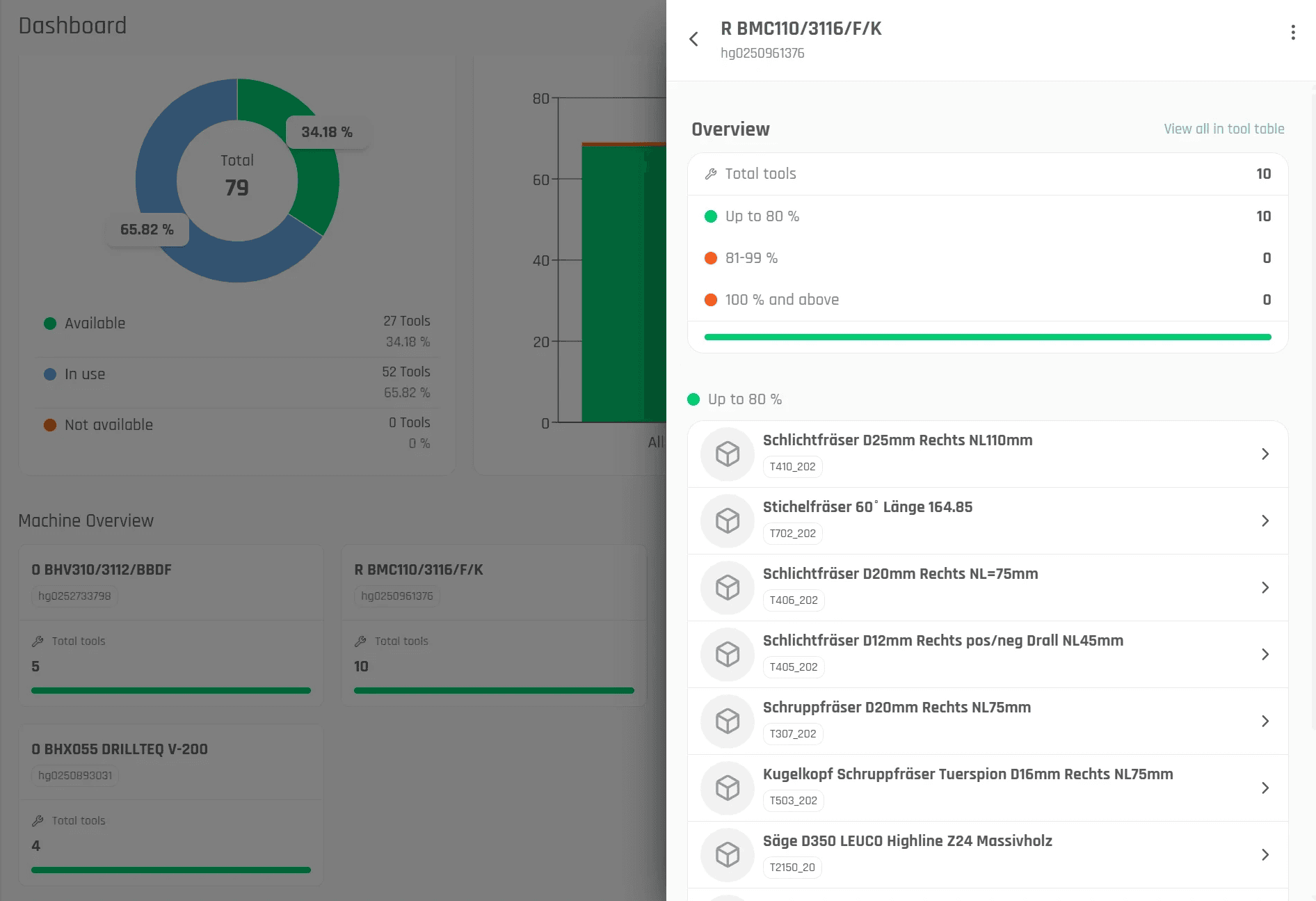
At the same time, recorded process values are compared with defined limit values. This makes it possible to identify tools that are approaching critical conditions or require action. All information is presented in a detailed report, which can be custom-fitted to your own requirements. Users decide for themselves what information is displayed and which tools are in focus.
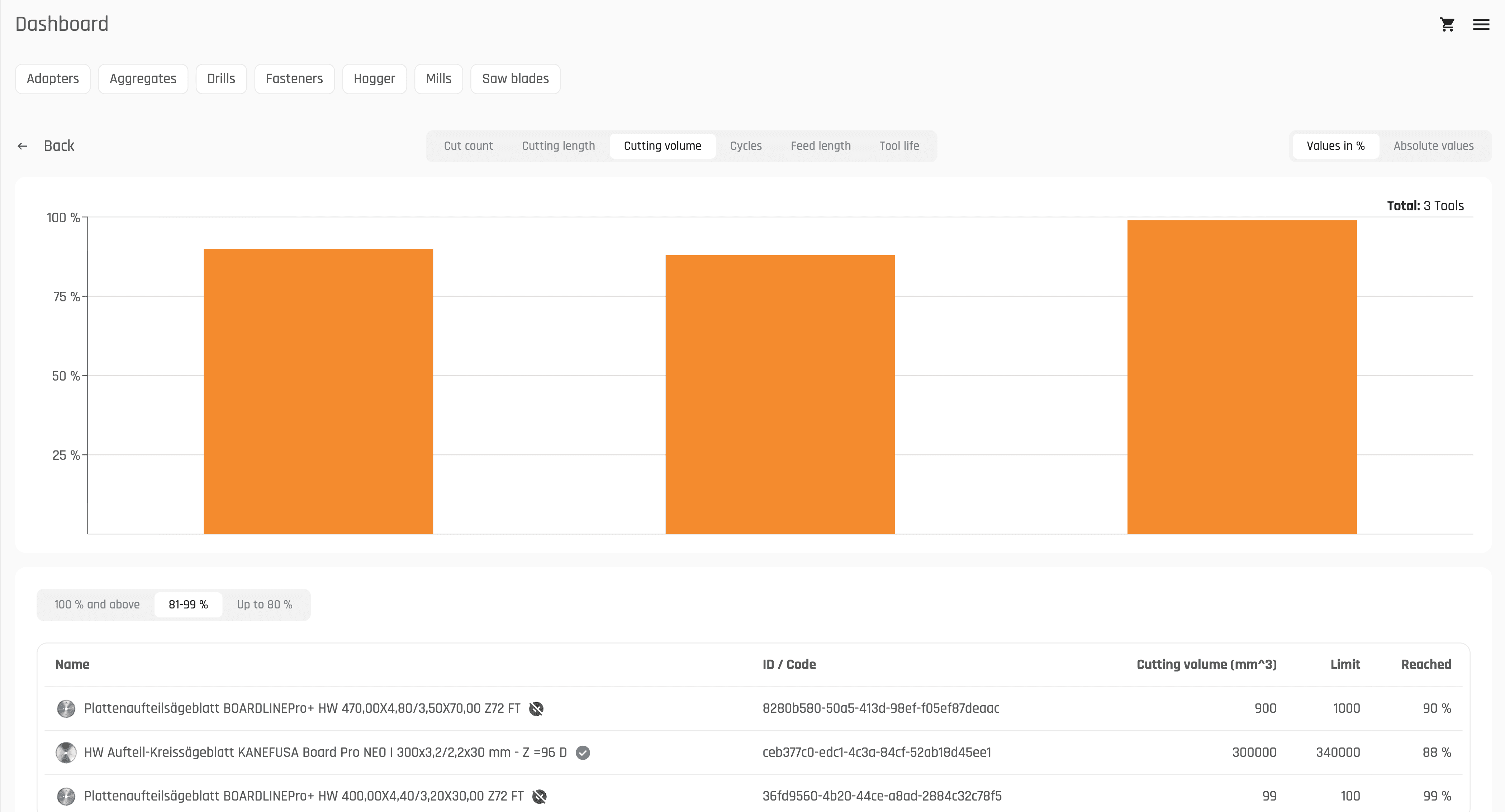
The benefit: problems are identified early on before they lead to unplanned downtimes or losses in quality.
Actively monitor stock levels
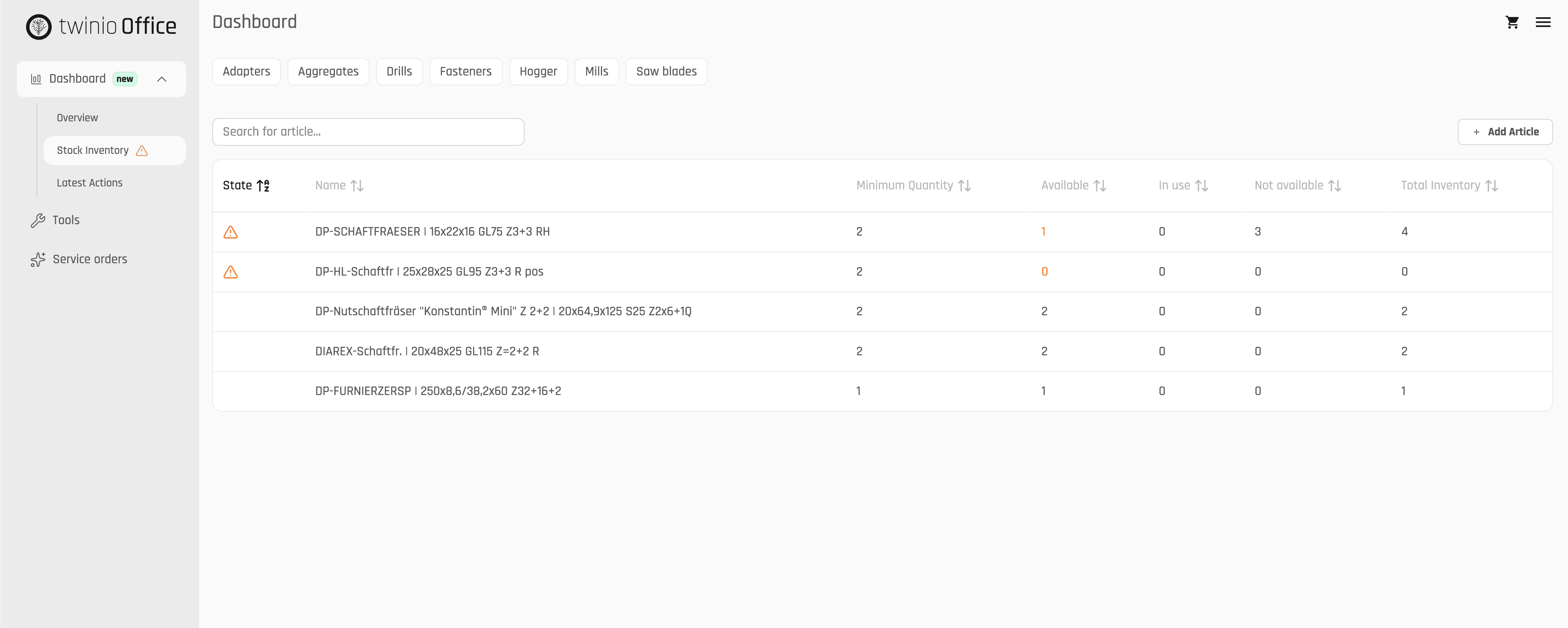
Unavailable tools can delay production processes and cause unnecessary costs. With the dashboard, minimum stock levels can be defined for individual items. As soon as the available quantity falls below this value, a visual warning is automatically displayed.
An orange exclamation mark makes critical Stock levels immediately visible and supports reordering in good time or initiating internal measures. This keeps users in control of their stocks at all times and reduces the risk of bottlenecks in production.
Trace histories and create transparency
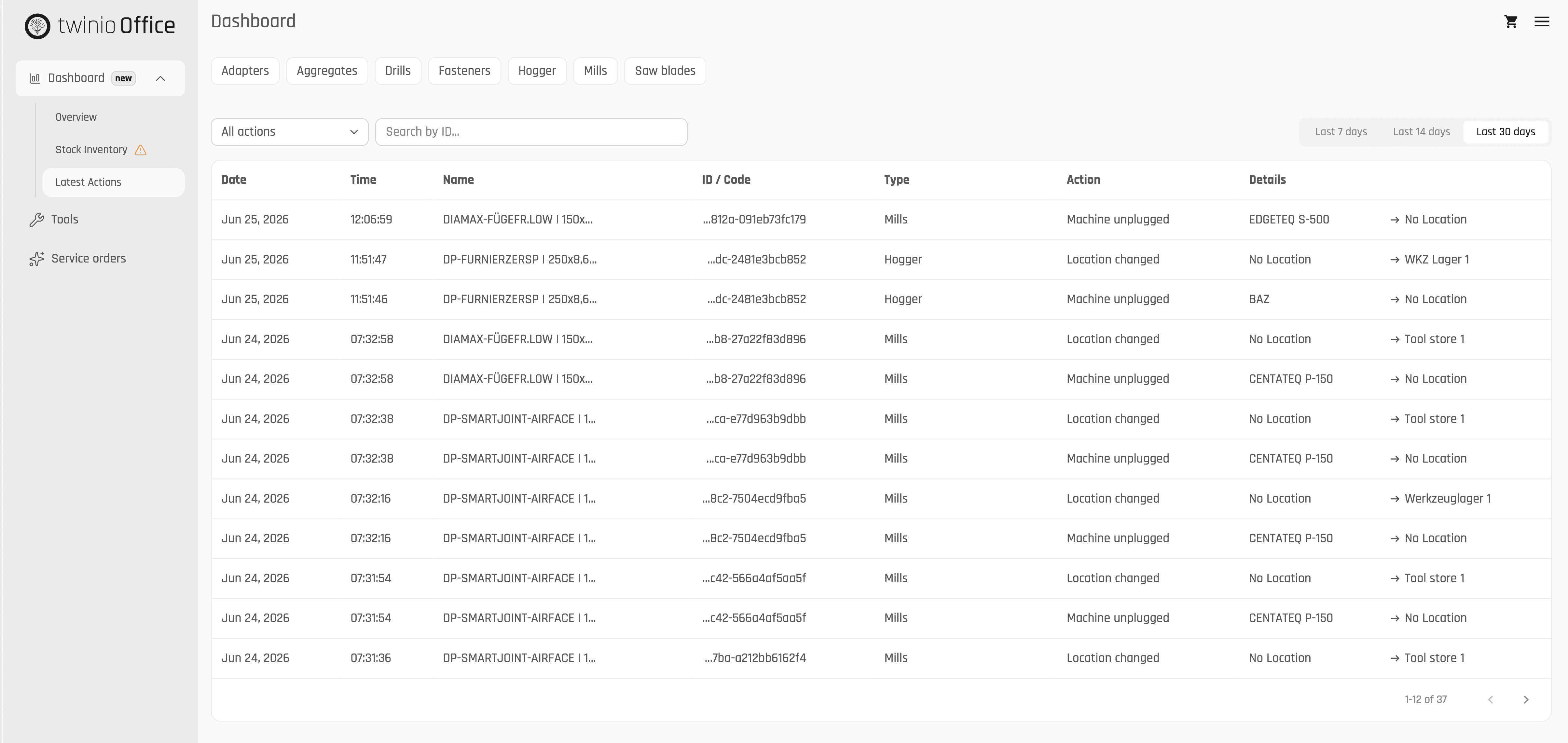
What was last done with a tool? Who made a change? And when was a specific action carried out?
The feature Recent actions creates exactly this transparency. For pre-defined actions, users can view the history of the past 7, 14, or 30 days. This makes it traceable which activities were performed on a tool and exactly when each action triggered.
Especially in teams or for cross-site collaboration, this facilitates the tracking of processes and ensures complete documentation within the digital tool cycle.
More transparency for better decisions
The new dashboard expands twinio by a central level of transparency and analysis. Availability, tool conditions, stock levels, and activities are clearly brought together and help to make well-founded decisions.
The result: less search effort, more control, and a better foundation for the daily work with tools.
With the dashboard, the digital tool cycle in twinio is extended by other important components – for even more transparency in production.
Frequently asked questions
What key figures are displayed in the dashboard?
The dashboard provides information on tool availability, stock levels, limit violations, and the last actions performed, among other things.
Is the data updated automatically?
Yes. The dashboard accesses the current data in twinio and displays it centrally and clearly. This means you always work with the current status of your tool data.
Is the dashboard a separate add-on?
Yes. The dashboard is available as a separate add-on for twinio and can be purchased in addition to the basis app.
How do I activate the dashboard add-on?
Depending on whether you are an existing or new customer, activation is done differently. In the Help Center, you will find the right instructions for both cases:
FAQ for existing customers
FAQ for new customers